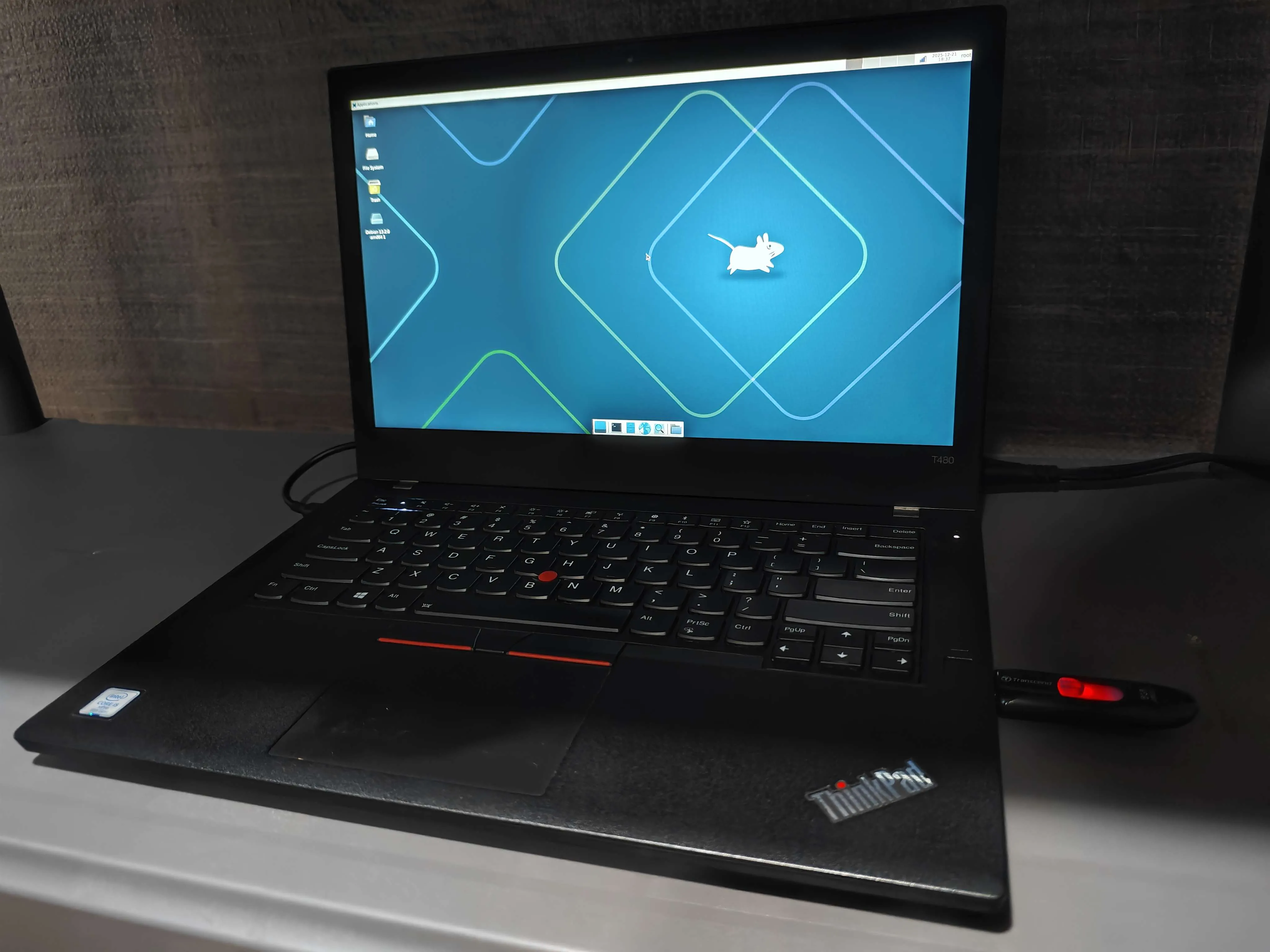
Turning My T480 ThinkPad into a Homelab Server
Since I’m about to graduate next semester, I want to explore creating a Linux homelab using my own hardware for learning purposes and to create my own home server or NAS.
Ever since I’ve had that thought, I’ve been casually browsing Facebook Marketplace every now and then in hopes of buying a secondhand Intel NUC or a Dell Optiplex for my self-hosting needs.
Hardware & System Requirements
There are a few constraints I need to satisfy in order to properly self-host in my house:
- It must be able to connect to my router through WiFi
- this is because our ethernet ports along the walls are broken and my folks aren’t keen on fixing them any time soon
- I can plug it directly into my router, but it will need some setup in my living room, so I would like to keep it as hands-off as possible for my initial testing and usage
- It must be low-maintenance and low-power
- since I won’t be using it for core services like a DNS, Forgejo instance, build server, and et cetera, I’m okay with it turning off or disconnecting every now & then; I already have a VPS for those previously mentioned
- my use-case for it will be mostly for file storage, application deployment testing, Docker containers, and for other useful utilities for my personal use
- It should be able to run Debian Linux
- I’m well-versed in Debian Linux systems administration with my various VPS setups in the past
- I’ve considered NixOS, but when I read about how often people had to rely on third-party repos for packages, I held back and decided to rely on Ansible for setting things up
- I also want to use a technology that is often used in enterprise scenarios (like Ubuntu), so Debian takes the cake for familiarity and community support
- It should work without a static IP or dynamic DNS
- I’ve had success using Cloudflare Tunnels + my own domain to host proof-of-concept apps over the internet, so I want to see how far I can go with just that
- Also, my ISP is notorious for overcharging for static IP addresses if you’re a resident and not a business, so I decided to not use that for now
These constraints don’t really reflect what most people have when it comes to self-hosting. At the very least, they have a static IP address or use dynamic DNS to expose their devices over the public internet, but sadly, I don’t have that luxury - so there’s not much resources for my kind of setup.
But alas, I’ll weather this storm and see how far I can go in this experiment.
Secondhand Mini PC Market Research
So with that out of the way, I collated my options in Facebook Marketplace. And here are some examples of the prices in my location:
| Name | Specs (according to the seller’s post) | Price (in USD) | Note |
|---|---|---|---|
| Dell Optiplex 5090 SFF Desktop PC with WiFi (SFF) | Dell Optiplex 5090 SFF Desktop PC w/wifi 10th Gen Intel Core i7-10700 16GB RAM 256 SSD (16CPUs 4.8GHz) 1xUSB-C 2xDisplay Port | 290 | Idle power draw is 20-25W according to this Reddit post |
| HP Elite 800 G9 | Processor: Intel Core i5-12600T (12th Gen, 6 Cores/12 Threads) PROCESSOR IS UPGRADEABLE TO 13th or 14th Gen RAM: 8GB DDR5 (Fast latest gen memory & upgradeable) Storage: 256GB NVMe SSD (Super fast boot times) 2nd NVME slot available Graphics: Intel UHD Graphics 770 Connectivity: Built-in Wi-Fi 6E & Bluetooth 5.2 OS: Windows 11 Pro 🔌 Ports: 2x DisplayPort (Dual Monitor Ready) 1x HDMI USB-C port Multiple USB 3.2 ports (Front and Rear) Gigabit Ethernet LAN | 256.10 | Idle power draw with SSD is 20W according to this Reddit post |
| Dell Optiplex 3090 (MFF) | CPU: Intel Core i5-10400T RAM: 8gb DDR4 SSD: 120gb | 179.27 | Can probably expect around 20W according to this Reddit post |
…and similar specs & prices for other models of similar caliber.
As you can see, Mini PCs are quite pricey in my location compared to the United States where you can find a decent mini PC for less than $100.
Why not use a ThinkPad?
After searching for a few more months, something started to cross my mind: I’ve been rocking a Lenovo Thinkpad T480 for my college classes and it has served me pretty well throughout the years. But now that I’m graduating, it’s currently collecting dust… So why don’t I turn it into a home server?
For more context, I got it around 4 years ago (2021) for about $340. Not that cheap, I know, but its configuration is pretty good relative to the other sellers in my area that also sell secondhand T480s.
Here are the specs and benchmarks of the ThinkPad:
Hardware Specs
| Component | Details |
|---|---|
| Model | Lenovo ThinkPad T480 |
| Purchase Year | 2021 (Second-hand) |
| Purchase Price | ~$340 |
| CPU | Intel Core i5-8350U (4C / 8T, 1.70 GHz) |
| RAM | 16 GB DDR4 (15.4 GiB usable) |
| Storage | 256 GB NVMe SSD |
| Wi-Fi | Intel Wireless (802.11ac) |
| Battery | Dual-battery system (internal + external) |
| AES-NI | Enabled |
| Virtualization | VT-x Enabled |
Geekbench Performance
| Test | Score |
|---|---|
| Single-Core | 1172 |
| Multi-Core | 3095 |
| Block Size | Read | Write | Total |
|---|---|---|---|
| 4K | 136.25 MB/s (34.0k IOPS) | 136.61 MB/s (34.1k IOPS) | 272.87 MB/s |
| 64K | 144.69 MB/s (2.2k IOPS) | 145.45 MB/s (2.2k IOPS) | 290.14 MB/s |
| 512K | 165.91 MB/s (324 IOPS) | 174.72 MB/s (341 IOPS) | 340.63 MB/s |
| 1M | 118.19 MB/s (115 IOPS) | 126.06 MB/s (123 IOPS) | 244.25 MB/s |
The battery can act as a built-in UPS if ever a power outage occurs as well.
The Final Decision
It seems to check all the boxes, so what’s holding me back?
Well, at first, I thought that it would be a waste to turn this T480 into a glorified playground for my DevOps and homelabbing needs. It’s in a well-used condition and could be resold for $250 if I wanted to. It even came with a valid Windows license in the BIOS!
But after further consideration, I wouldn’t have the same convenience of having a server I can bring around if ever I need to, having a built-in UPS, and having all the ports and upgradeability I would ever need for a small Linux box.
And at the end of the day, I’ll end up buyind a Mini PC if ever I do sell it. But at the market prices at the moment? It’s simply not worth the hassle.
And also, it would be a pretty cool experiment to see how far I can take a “decommissioned” laptop into the world of homelabbing, so here we are today.
The Initial Setup
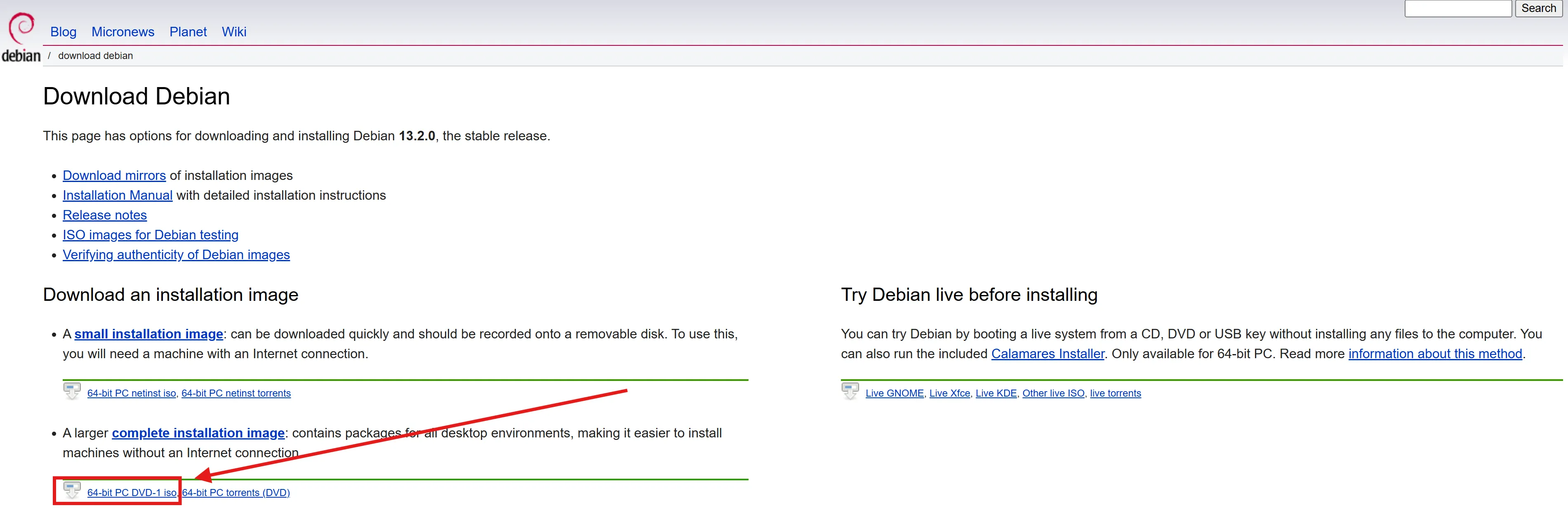
First, I went to the official Debian Distribution ISO Download Page and downloaded the larger “complete installation image” AMD64 .iso for offline installations with my 8GB USB stick.
Next, I downloaded the balenaEtcher Windows installer in order to flash my USB with the Debian ISO on my Windows 11 PC using this configuration:
Once, it’s completed, I ejected the USB stick from my Windows PC and plugged it into my ThinkPad before entering the boot menu by pressing Enter and then F12 during startup, when prompted.
Partitioning
When using the guided partitioning setup of Debian 13, you have 4 main guided partitioning schemes:
- All files in one partition
- everything stored in
/**will be in the same disk partition
- everything stored in
- Separate
/homepartition- useful for when you want to retain your dotfiles or other files when you reinstall your OS
- Separate
/home,/var, and/tmppartitions- separating
/varis useful if you want to cap or isolate the storage space for application storage like/var/lib/docker/volumesso that they survive when you reinstall your OS or switch between different distros on the same machine /tmpis for application-level cache or user-specific session storage
- separating
- Separate
/varand/srv, swap < 1GB- this has a
(for servers)annotation beside it - it’s good for my use-case with Docker in
/var - it’s also good when I want to persist any publicly-served content in
/srv
- this has a
I ended up going for the 4th option since I want any Docker volumes and service files to persist in the future when I use them.
However, when I did, it created /srv with 228GiB and /var with 7.4GiB, which is not ideal for my setup which will involve a lot of Docker Containers, so to keep things simple, I finally opted for the 1st option.
I can always add more partitions later (which I will using Ansible).
This finally resulted in the following partition table:
| Size | Type | Mount Point |
|---|---|---|
| 1 GB | EFI System Partition (EFI) | /boot/efi |
| 1 MB | Free Space | - |
| 241.8 GB | ext4 | / |
| 13.2 GB | swap | swap |
| 335.4 MB | Free Space | - |
Software Selection
This is another convenience offered by the Debian ISO installer which lets you choose some default packages to install before booting into the distro.
Since I have 16GiB of RAM, I can spare some for a lightweight DE when I want to use the “server” directly.
- I unticked “Debian desktop environment” since I don’t need it.
- I opted to install Xfce since I’ve used it in the past for sub 500MiB memory consumption and its stability.
- I also included the “SSH server” and “standard system utilities”.
Initial Boot
Once everything is done installing, I booted into the operating system to be greeted with a working Xfce DE.